sharable.link is live in ChatGPT Plugins as of today. If you make reports, dashboards, proposals or prototypes in ChatGPT, you can now publish them as a link that anyone opens in a browser, the same way people have been doing it from Claude.
This post covers what the plugin does, how to add it, what to say to ChatGPT, and what changes if you already use sharable.link in Claude (nothing, but there's one nice thing).
What the sharable.link ChatGPT plugin does
You make something in ChatGPT: a one-page report, a dashboard, a client proposal, a pricing calculator. Then you say "Publish this on sharable.link". ChatGPT publishes the page and replies with its link, something like sharable.link/j0yf8kfr.
The person you send it to opens it in any browser, on a phone or a laptop. They don't need ChatGPT, an account or anything installed. Charts still move, tabs still switch and calculators still calculate. It's the working page, not a screenshot or a PDF of it.
From the same chat you can:
- Choose who can open it. Anyone with the link, anyone with the link and a password, or only the people and company domains you name, like everyone at acme.com.
- Update it and keep the link. Replace the whole page, or change one part of it, like a number or a date. Everyone who has the link sees the new version.
- Check on your pages. Ask which pages you've published and how many views each one has.
- Unpublish it. The link stops working straight away.
Pages under 150 KB publish straight from the chat. Bigger HTML files, up to 25 MB, go through an upload area where you drop the file.
How to add it
- Open sharable.link/chatgpt and press the button. It opens sharable.link's listing in ChatGPT Plugins. You need to be signed in to ChatGPT.
- Add the plugin. ChatGPT asks you to sign in to sharable.link: use Google, Microsoft or a link sent to your email. There's no password to create.
- Read what the plugin asks to do, then press Allow.
That's it. Your sharable.link account is created the first time you sign in, and it's free.
What to say to ChatGPT
Name sharable.link in what you ask. ChatGPT has its own ways to share a chat, and naming sharable.link makes sure the page goes to the plugin. If ChatGPT still doesn't use it, type @ in the message box and pick sharable.link.
These work as written:
- Publish the page you just made: "Publish this on sharable.link"
- Lock it with a password: "Publish this on sharable.link with a password"
- Let in only one company: "Publish this on sharable.link for everyone at acme.com"
- Replace a page and keep its link: "Update my sharable.link page q3-report with this version"
- Change one detail: "Change the date on my sharable.link page q3-report to 31 October"
- See what you've published: "Which pages have I published on sharable.link, and how many views does each have?"
- Take a page down: "Unshare my sharable.link page q3-report"
In those prompts, q3-report is the last part of the page's link.
One thing to know before you change a page: ChatGPT can't read a published page back. Ask for the change in the chat where you made the page, or in one where you've attached its file, so ChatGPT has a copy to work from.
Ask ChatGPT for a single HTML page
sharable.link publishes HTML: one file, with its styles and scripts inside it. Most of the time that's what you get. Now and then the answer is a project with several files instead, and then it helps to ask for "a single, self-contained HTML file" before you publish.
A prompt that works well:
Make a single HTML page that sums up our Q3 results for a client: three headline numbers, a chart of monthly revenue and a short "what's next" section. Keep the styles and the script inside the one file. Then publish it on sharable.link with a password.
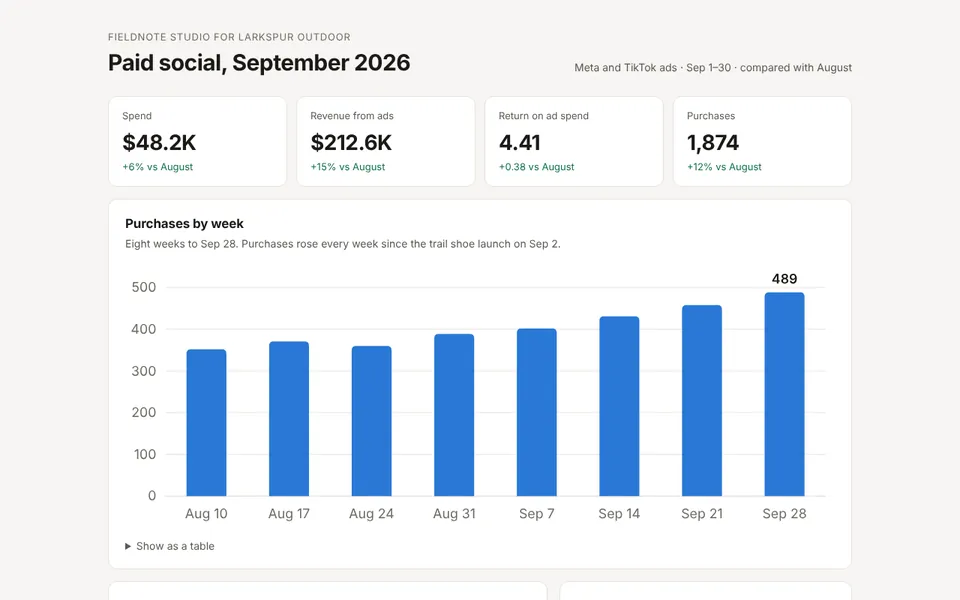
Here's the kind of page that comes back, published as a link. This one is a sample with made-up names and numbers, and you can open it the way a client would:
Who it's for
The same people who use sharable.link in Claude: consultants, agencies, analysts and founders who send their work to clients and teammates. Some of the things they publish:
- A monthly report for a client, behind a password
- A proposal that only the client's company can open
- A dashboard the team checks every week, updated in place
- A calculator a prospect fills in with their own numbers
The use cases page has dozens more, each with a live example and a prompt to start from.
Already using sharable.link in Claude?
Nothing changes for you. It's the same service and the same account. Sign in to the plugin with the email address you use in Claude, and the pages you publish from ChatGPT land on the same dashboard as the ones from Claude, side by side.
That's the nice thing: if your team is split between Claude and ChatGPT, everyone can publish with the same tool, and the links all look the same to the people who get them. The Claude connector keeps working exactly as it did.
Questions
Do the people I send the link to need ChatGPT?
No. They open it in a browser. The only time they sign in is when you've shared the page with specific people or a company, so the page can check who they are.
Can I password-protect a page I published from ChatGPT?
Yes, when you publish it or any time after. How password protection works has the details.
I made a page in ChatGPT before I added the plugin. Can I still publish it?
Yes. Paste its HTML into a new chat and say "Publish this on sharable.link", or save the page as an .html file and drop it on the free HTML hosting page. How to host an HTML file online walks through the second way.
Is it free?
Yes. Adding the plugin, publishing pages and opening them are all free. A page you publish stays up until you take it down.
Is sharable.link made by OpenAI?
No. sharable.link is an independent tool built by BotsCrew, and it isn't affiliated with OpenAI or Anthropic.