What Is Claude Cowork?
Claude Cowork is a collaborative environment where Claude helps you build, iterate, and refine projects. Think of it as a workspace where you and Claude work side by side — you describe what you need, Claude creates it, you provide feedback, and Claude revises.
The output is often HTML. Dashboards, reports, interactive tools, styled documents, landing page drafts — Cowork generates these as fully functional web pages that render right in your workspace. You can see them, interact with them, and refine them through conversation.
The problem comes when you want someone else to see what you've built.
The Sharing Gap in Cowork
Cowork is designed for creation, not distribution. When Claude builds an HTML page in your Cowork session, that page lives in your local environment. You can see it. Your teammate across the room cannot.
The typical workarounds are familiar and frustrating:
- Copy the file to Slack. You'd need to find the HTML file on your machine, attach it, and hope the recipient knows to download and open it in a browser. Most people see an attachment and ignore it.
- Take a screenshot. You lose every interactive element — the charts, the hover states, the scrollable tables, the responsive layout. A screenshot of a dashboard is not a dashboard.
- Deploy it to a hosting service. You could push the file to Netlify or GitHub Pages. That works, but it takes 5-10 minutes of setup per page. When you're iterating fast in Cowork, stopping to deploy after every share-worthy revision kills your momentum.
None of these match the speed at which Cowork lets you create. You can build a polished page in 30 seconds. Sharing it should not take 10 minutes.
How /share Works in Cowork
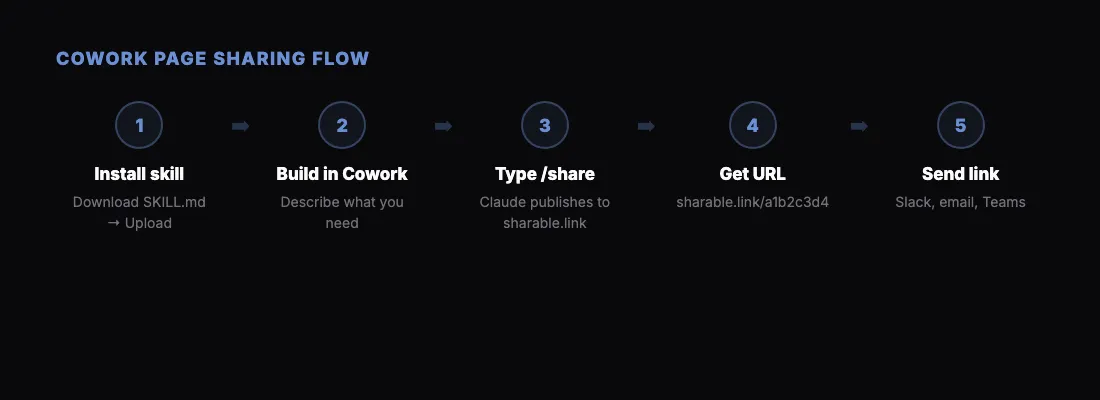
The sharable.link skill adds a /share command directly inside Cowork. After Claude creates an HTML page, you type /share and get a public URL.
Here's the step-by-step process:
Step 1: Connect sharable.link to Claude
Before your first share, add the connector:
- Add the Claude connector — one click from the Claude Directory, nothing to download.
- Sign in with Google or Microsoft when Claude asks, then approve the permissions.
This is a one-time setup. After that, Claude can publish, update, and unshare pages in any session.
Working in Cowork and prefer a skill file? Download SKILL.md and upload it under Customize → Skills → + → Create skill instead.
Step 2: Build Your Page
Work with Claude as you normally would. Ask it to create whatever you need:
"Build a project timeline page showing milestones for Q2 2026. Include a visual timeline, a table of deliverables with owners and dates, and a status section with red/yellow/green indicators."
Claude creates the HTML page. You see it rendered in Cowork. It looks great.
Step 3: Share It
Type /share in the conversation.
Claude reads the HTML file, publishes it to sharable.link, and returns a URL:
``
Published! Your page is live at: sharable.link/a1b2c3d4
`
Step 4: Send the Link
Copy the URL and send it wherever your team communicates — Slack, email, Teams, a project management tool, a text message. The recipient clicks the link and sees the exact same page you see in Cowork.
No accounts to create. No files to download. No browser warnings about HTML attachments.
Adding Password Protection
If the page contains confidential information — client data, internal financials, strategy documents — protect it with a password.
When you run /share, tell Claude you want it protected:
"Share this with a password."
Claude will ask you to set a password. Once published, the recipient sees a clean password form when they open the link. After entering the correct password, the page loads.
You send the link and the password to your team separately. Simple access control without IT overhead.
Real Cowork Workflows
Here are practical scenarios where /share fits naturally into Cowork sessions:
Client Deliverable Review
You're building a deliverable for a client — a strategy document, a research report, a project proposal. You iterate on it with Claude in Cowork until it looks right. Then:
- Type /share
to get a link. - Send it to your internal team for review.
- Collect feedback. Go back to Cowork and ask Claude to make changes.
- Type /share
again for the updated version. - When approved, send the final link to the client.
Each /share creates a new URL, so there's no confusion about which version someone is looking at.
Team Standup Dashboard
Every Monday morning, you ask Claude to build a team status dashboard:
"Create a sprint dashboard showing this week's priorities, task assignments, blockers, and progress on last week's goals. Use the data I'm about to provide."
You paste in your task data. Claude generates a clean dashboard. Type /share and paste the link in your team's standup channel. Everyone sees the same dashboard without needing access to your Cowork session.
Quick Prototype Sharing
You're exploring an idea — a new landing page layout, a pricing page concept, a feature mockup. You build it fast in Cowork. Rather than scheduling a meeting to walk through it, type /share and post the link in your team channel with a note: "Quick concept for the new pricing page. Thoughts?"
Your team can see and interact with the prototype immediately. Feedback flows back through chat.
Meeting Prep
Before a meeting with stakeholders, you ask Claude to build a briefing page:
"Create a one-page briefing for tomorrow's board meeting. Include Q1 revenue summary, key product launches, and three strategic questions we need to address."
Type /share, add the link to the meeting invite, and everyone shows up prepared.
Tips for Better Cowork Pages
The quality of your shared page depends on how you prompt Claude. Here are patterns that produce share-worthy output:
Be specific about structure. Instead of "make a report," say "make a report with an executive summary, three data sections, and a recommendations section." Claude responds well to clear structure.
Specify the audience. "This is for our VP of Sales" or "This is for a non-technical client" changes how Claude writes and designs the page. Tone, complexity, and visual style all adjust.
Include real data when possible. Pages with real numbers and actual project names are more useful than generic sample data. Paste your data directly into the conversation and ask Claude to incorporate it.
Ask for interactivity when it helps. "Add collapsible sections so readers can focus on one area at a time" or "make the chart filterable by region." Interactive elements make shared pages more useful than static documents.
Request a mobile-friendly layout. If your team reads links on their phones, say so: "Make sure this is readable on mobile." Claude will use responsive CSS.
Frequently Asked Questions
Does /share work only in Cowork?
No. The /share command also works in Claude Code. Anywhere Claude generates HTML files, you can share them.
Can multiple people view the same link?
Yes. There's no viewer limit. Anyone with the URL (and password, if set) can open the page.
What happens if I share something and then want to take it down?
Currently, shared links persist. Avoid sharing anything you wouldn't want accessible via the URL long-term, or use password protection to control access.
Can I share pages that use Claude's canvas/preview?
The /share` command works with HTML files that Claude creates. If Claude generated the page as an HTML file in your Cowork session, it can be shared.
Beyond Cowork: The Full Workflow
Cowork is one entry point, but the sharing workflow extends across Claude's ecosystem. See what Claude Artifacts are for background on how Claude generates HTML content. For a walkthrough of the skills installation process, visit our skills install guide.
If you're sharing dashboards specifically, our guide on sharing Claude dashboards covers that workflow in detail.
Get Started
Turn every Cowork page into a shareable link:
- Open Claude Cowork.
- Add the Claude connector — one click from the Claude Directory, nothing to download.
- Build something with Claude.
- Ask Claude to share it as a link.
- Send the link to anyone.
Your Cowork session is where the work happens. sharable.link is how the work reaches everyone else.