What Are Claude Skills?
Claude skills are markdown instruction files that teach Claude how to perform specific tasks. When you install a skill, you are giving Claude a new capability — a defined workflow it can execute on command, complete with steps, parameters, and context about when and how to use it.
Skills are one of the features that make Claude Cowork so powerful. Out of the box, Claude is a general-purpose assistant. With skills installed, it becomes a specialist — a publishing tool, a project manager, a research synthesizer, or whatever your workflow demands.
Each skill is a .md file that follows a simple structure: a description of what the skill does, the trigger conditions (what prompts Claude to use it), and the step-by-step instructions Claude follows when the skill is invoked. Because they are just markdown, anyone can read, write, and share them.
How to Install a Skill in Claude Cowork
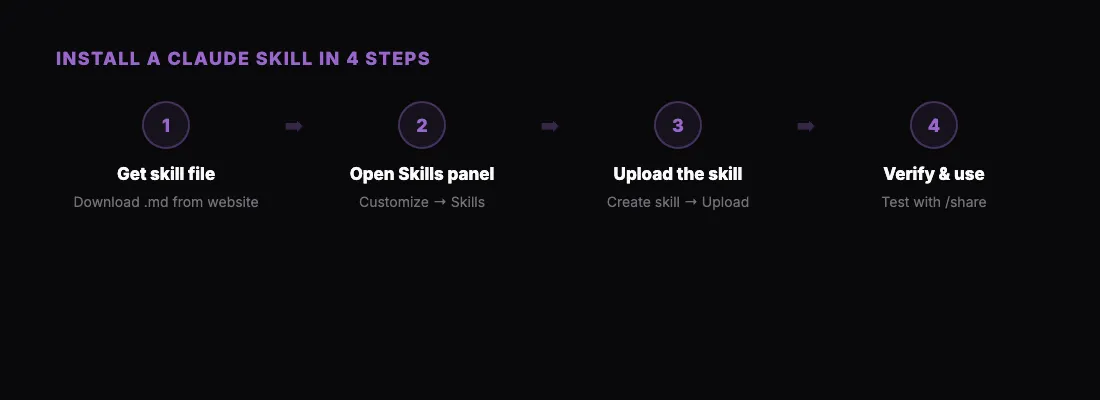
Installing a skill in Cowork takes about 30 seconds. Here is the step-by-step process:
Step 1: Get the Skill File
Skills are distributed as .md files. You can get them from:
- Skill directories — community-maintained lists of popular skills
- Project websites — many tools publish their own skills (like the
/shareskill at sharable.link/install) - GitHub repositories — developers share skills alongside their projects
- Writing your own — if you have a repeatable workflow, you can turn it into a skill
Download the .md file to your computer, or copy the URL if the skill provider supports direct installation.
Step 2: Open the Skills Panel
In Claude Cowork, go to Customize in the sidebar, then select Skills. This shows your currently installed skills and gives you the option to add new ones.
Step 3: Add the Skill
Click Create skill and then Upload a skill. Select the .md file you downloaded. Cowork will parse it, show you a preview of what the skill does, and confirm the installation.
Alternatively, if you are working in Claude Code (the terminal-based tool), you can place skill files directly in your project's .claude/skills/ directory.
Step 4: Verify the Installation
After installation, the skill should appear in your skills list. You can test it by typing the trigger command in your chat. For example, after installing the /share skill, just type /share and Claude will walk you through publishing an HTML file.
The /share Skill: A Practical Example
Let's walk through a real skill to make this concrete. The /share skill from sharable.link lets you publish any HTML file Claude creates to a public URL.
What it does: Takes an HTML file (a dashboard, report, landing page, or interactive tool), uploads it to sharable.link, and returns a clean URL like sharable.link/a1b2c3d4 that anyone can open in their browser.
How to get it: Visit sharable.link/install and download the SKILL.md file. (sharable.link also ships the same capability as a Claude connector — one click, no file to upload — but the skill is the better worked example here.)
How to install it: Follow the steps above — open Customize, go to Skills, upload the file.
How to use it:
- Ask Claude to build something: "Create a competitive analysis dashboard for Q1."
- Claude generates the HTML file.
- Type
/sharein the chat. - Claude publishes it and gives you the URL.
- Send the link to anyone — no accounts or downloads needed on their end.
Optional: password protection. Say "share this with a password" and Claude will prompt you to set one. The recipient sees a simple password form before the content loads.
This single skill eliminates the need to manually deploy pages, set up hosting, or share files through email attachments. It is a good example of how a small skill file can remove a significant amount of friction from your workflow.
Popular Skills Worth Installing
The Claude skill ecosystem has grown rapidly since Cowork launched. Here are categories of skills that are widely used:
Publishing and sharing. The /share skill from sharable.link is the most direct example — publish HTML to a URL in seconds. Essential for anyone who creates visual outputs in Claude.
Document generation. Skills for creating Word documents, PowerPoint presentations, spreadsheets, and PDFs. These let Claude output work in the formats your team and clients actually use.
Project management. Sprint planning, standup generation, backlog grooming, and status reporting skills that connect Claude to your development workflow.
Sales workflows. Account research, call prep, outreach drafting, and pipeline review skills that turn Claude into a sales operations tool.
Marketing automation. Campaign planning, content drafting, SEO auditing, and email sequence generation skills for marketing teams.
Code and engineering. Architecture decision records, testing strategies, deploy checklists, and incident response workflows. These complement Claude Code's terminal-based capabilities.
For a curated list of the most impactful skills, check out our guide to the best Claude Cowork skills for productivity.
How Skills Differ from Plugins
This is a common point of confusion, so it is worth clarifying.
Skills teach Claude how to do something. They are instructions — a workflow defined in markdown. Claude reads the skill and follows the steps. Skills do not require external connections or API keys. The /share skill, for example, tells Claude how to call the sharable.link API and format the response.
Plugins give Claude access to something. They connect Claude to external services — Slack, Google Calendar, Jira, HubSpot. Plugins handle authentication and API communication so Claude can read and write data in those services.
In practice, the most powerful workflows combine both. A plugin connects Claude to your CRM data. A skill tells Claude how to turn that data into a formatted report. Another skill publishes the report to a shareable URL. Each piece does one thing well, and together they create an end-to-end pipeline.
For more on plugins specifically, see our complete Cowork plugins guide.
Writing Your Own Skills
If you have a workflow you repeat regularly, you can turn it into a skill. The format is straightforward:
- Name and description. What the skill does, in plain language.
- Trigger conditions. When should Claude use this skill? Specific commands, phrases, or contexts.
- Steps. The exact instructions Claude should follow. Be specific — include API endpoints, formatting requirements, error handling, and edge cases.
- Examples. Sample inputs and expected outputs help Claude understand the intent.
The best skills are narrowly scoped. Instead of a skill that "manages all marketing," write one that "generates a weekly email newsletter draft from a list of bullet points." Specificity leads to reliability.
Troubleshooting Common Issues
Skill does not appear after upload. Close and reopen the Skills panel. If it still does not show, verify the file is valid markdown with proper frontmatter.
Claude does not trigger the skill. Check the trigger conditions in the skill file. If the skill triggers on /share, make sure you are typing exactly that. Some skills trigger on natural language phrases instead of slash commands.
Skill output is not what you expected. The skill's instructions may need refinement. Open the skill file, review the steps, and adjust. Skills are just text — editing them is trivial.
Skill works in Cowork but not in Claude Code. Some skills are platform-specific. If a skill references Cowork UI features, it will not work in the terminal. Check if the skill author provides a version for each platform.
Getting Started
The fastest path to understanding Claude skills is to install one and use it:
- Download the
/shareskill from sharable.link/install. - Open Claude Cowork and go to Customize, then Skills, then +, then Create skill, then Upload.
- Ask Claude to create something — an HTML dashboard, a report, a landing page.
- Type
/share. - Open the link Claude gives you.
That entire flow takes under a minute. If you only want the sharing itself and not the skill-installation practice, sharable.link's Claude connector does the same job in one click, with no file to upload — and connectors are a different mechanism from skills, worth knowing about before you install either. Once you see how one skill transforms your workflow, you will want to install more. Browse the skill ecosystem, try what is relevant to your role, and consider writing your own for the workflows unique to your team.
Skills are what make Claude go from a smart assistant to a capable collaborator. The more you install, the more Claude can do for you — and the less time you spend on the repetitive parts of your work.