What Is Claude Cowork?
Claude Cowork is Anthropic's desktop application for working alongside Claude as a persistent, context-aware collaborator. Unlike a chat window that resets with every conversation, Cowork keeps your files, tools, and project context connected across sessions. Think of it less as a chatbot interface and more as a workspace where Claude is your always-available coworker.
Released in early 2026, Cowork was built for professionals who rely on Claude daily — marketers drafting campaigns, engineers debugging systems, analysts building reports, and operators managing processes. If you have been using claude.ai or Claude Code, Cowork sits alongside them as the third major way to interact with Claude, each designed for a different workflow.
How Cowork Differs from claude.ai and Claude Code
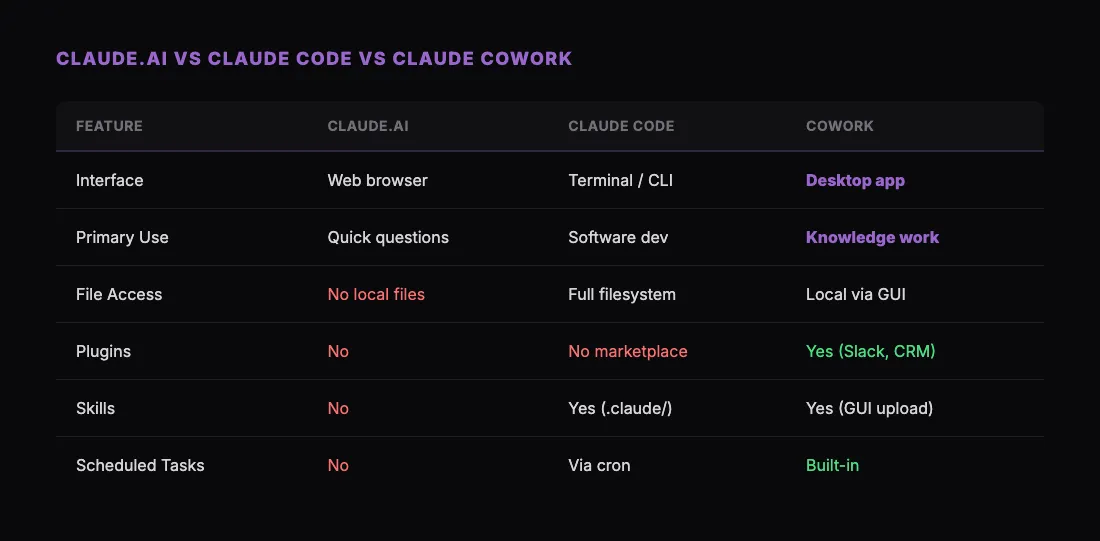
Understanding where Cowork fits requires knowing what already existed.
claude.ai is Anthropic's web-based chat interface. You open a browser, type a message, and get a response. It is great for quick questions, one-off tasks, and conversations that do not need to persist beyond the session. But it has no access to your local files, no way to run commands, and no plugin ecosystem.
Claude Code is Anthropic's terminal-based coding agent. It lives in your command line, reads your codebase, and can execute shell commands. It is purpose-built for software development — writing code, running tests, committing changes. Powerful, but scoped to engineering workflows.
Claude Cowork bridges the gap. It runs as a desktop app with access to your local filesystem, a plugin marketplace for connecting external tools, and a skill system that lets Claude learn new capabilities. It is designed for knowledge work broadly — not just coding, not just chat.
If claude.ai is where you ask Claude a quick question and Claude Code is where you pair-program with Claude, Cowork is where you sit down with Claude and get real work done across your entire tool stack.
Key Features of Claude Cowork
Skills
Skills are instructions that teach Claude how to perform specific tasks. They are markdown files that describe a workflow, and when installed, they give Claude new capabilities it can invoke on command.
For example, the /share skill from sharable.link teaches Claude how to publish any HTML file to a public URL with a single command. Instead of manually deploying a page, you just type /share and Claude handles the rest.
Skills are lightweight and community-driven. Anyone can write a skill, share it, and install skills from others. You can learn exactly how to find and set them up in our Claude Skills install guide.
Plugins
Plugins connect Claude to external services and tools. While skills teach Claude how to do something, plugins give Claude access to something — your Slack workspace, your Google Drive, your CRM, your PDF viewer.
The plugin marketplace inside Cowork lets you browse, install, and manage these connections. Once a plugin is active, Claude can read from and write to the connected service without you switching contexts. For a deep dive, check out our complete guide to Cowork plugins.
Connectors
Connectors are the underlying integrations that power plugins. They handle authentication, API calls, and data formatting between Claude and third-party services. Most users interact with connectors through plugins, but advanced users can configure custom connectors for internal tools and APIs that are not in the marketplace. Our explainer on what Claude connectors are and how to add one covers the permission model — what a connector can and cannot see once you approve it.
Scheduled Tasks
Cowork lets you set up tasks that Claude runs on a schedule — daily standup summaries, weekly pipeline reviews, recurring report generation. You define what Claude should do and when, and Cowork handles execution even when you are not actively in the app.
This is particularly useful for operational workflows. Instead of remembering to pull metrics every Monday morning, you configure Claude to do it automatically and drop the results into your Slack channel.
File and Project Context
Cowork maintains awareness of your active project. It can read files from your working directory, understand the relationships between documents, and remember context across conversations. When you pick up work the next day, Claude knows where you left off.
Who Is Claude Cowork For?
Cowork is designed for professionals who work with information — creating it, analyzing it, sharing it, and acting on it. The most common use cases include:
Marketers and content creators. Drafting blog posts, building email sequences, generating campaign briefs, creating landing pages, and sharing them for review using tools like /share from sharable.link.
Sales teams. Researching accounts, prepping for calls, drafting outreach, reviewing pipeline, and generating forecast reports — all without leaving the workspace.
Product managers. Writing specs, synthesizing user research, planning sprints, and keeping stakeholders updated with structured reports.
Operations and project managers. Building runbooks, tracking compliance, generating status reports, and managing vendor relationships.
Engineers (non-coding workflows). Cowork complements Claude Code. Use Code for the terminal and codebase work, use Cowork for documentation, architecture decisions, incident postmortems, and team communication.
The common thread is that these are people who spend their day creating and processing documents, making decisions based on data, and communicating with teams. Cowork puts Claude in the middle of that workflow.
Getting Started with Claude Cowork
Setting up Cowork takes a few minutes:
- Download Cowork from Anthropic's website. It is available for macOS, Windows, and Linux.
- Sign in with your Anthropic account. If you have a Claude Pro, Team, or Enterprise plan, Cowork is included.
- Install your first skills. Open Customize, go to Skills, and add the ones relevant to your work. The /share skill from sharable.link is a good starting point — it lets you publish any HTML output Claude creates to a shareable URL.
- Connect your first plugin. Browse the marketplace and connect the tools you already use — Slack, Google Calendar, your CRM.
- Start working. Open a project folder, give Claude context about what you are working on, and collaborate.
The learning curve is minimal if you have used claude.ai before. The difference is that Cowork remembers your context, connects to your tools, and supports a much richer workflow.
Tips for Getting the Most Out of Cowork
Install skills before you need them. Browse the skill library and set up the ones relevant to your role. When the moment comes — say you need to share an HTML dashboard with a client — the skill is already there.
Use scheduled tasks for recurring work. Anything you do on a regular cadence — standup notes, metric pulls, pipeline reviews — should be a scheduled task. Set it once and let Claude handle it.
Combine skills and plugins. The real power of Cowork emerges when you chain capabilities. Use a plugin to pull data from your CRM, a skill to generate a report, and another skill to share it as a public link.
Keep your project context tight. Cowork works best when it has clear context. Point it at a specific project folder and give it background on what you are working on. The more context Claude has, the better its outputs.
What Comes Next
Anthropic is actively expanding the Cowork ecosystem. The skill and plugin marketplaces grow weekly, and the community is building new capabilities faster than any single team could. Whether you are comparing Cowork vs Claude Code for your workflow, exploring the best productivity skills, or just getting started, Cowork is where Claude becomes less of an assistant and more of a genuine collaborator.
The best way to understand it is to try it. Install Cowork, add a few skills, connect a plugin, and start working. You will wonder how you got by without it.